
How to Optimize Gaming Laptop for HDR Performance
If you’ve ever enabled HDR in a game and felt disappointed by washed-out colors, dull brightness, or strange lighting, you’re not alone. Many gamers turn on HDR expecting cinematic visuals, only to feel that something looks off. The truth is, HDR on gaming laptops requires careful optimization to work properly.
Learning how to optimize gaming laptop for HDR performance can completely change your gaming experience. When HDR is set up correctly, you’ll see brighter highlights, deeper blacks, richer colors, and better contrast. When it’s not optimized, HDR can actually make games look worse than standard SDR.
HDR (High Dynamic Range) is not a simple switch. It depends on several factors working together:
your laptop’s display quality, GPU power, Windows HDR settings, driver configuration, and in-game HDR gaming settings. Without proper laptop HDR optimization, you won’t see the real benefits.
This guide walks you through every important step, explained in simple language. No confusing technical jargon. No unnecessary theory. Just practical, real-world HDR performance tips that actually work on gaming laptops.
What HDR Really Means for Gaming Laptops
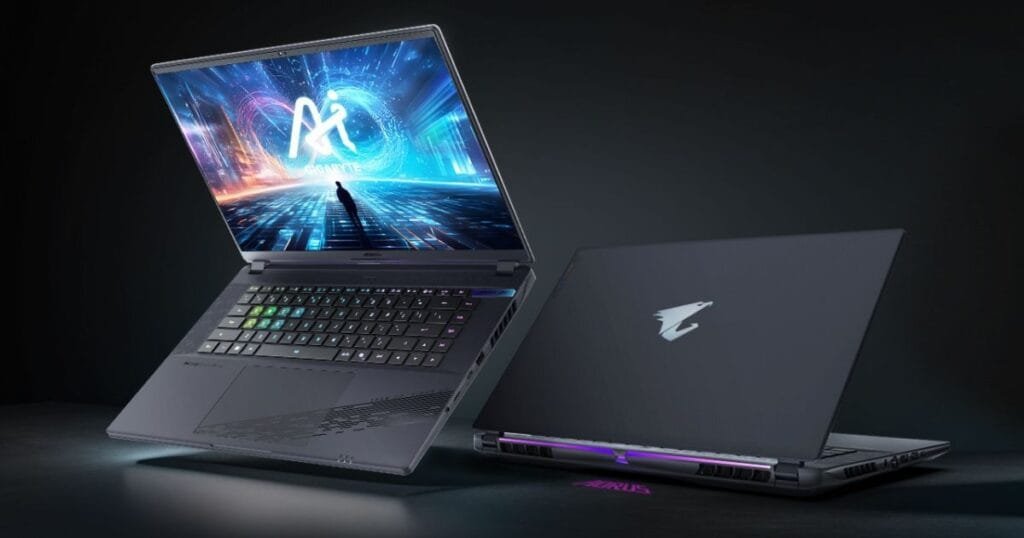
HDR allows your screen to display a wider range of brightness and colors than standard displays. Instead of everything looking evenly lit, HDR creates depth and realism by showing bright highlights and deep shadows at the same time.
In gaming, HDR means:
- Brighter explosions and sunlight
- More visible details in dark scenes
- Better color accuracy and realism
- Improved immersion, especially in cinematic games
However, HDR performance on laptops is not the same as on TVs or high-end monitors. Many gaming laptops advertise HDR support, but the actual experience depends heavily on the panel quality.
Understanding HDR Certifications
Most gaming laptops fall into these categories:
- HDR400 – Entry-level HDR, limited brightness
- HDR600 – Noticeably better contrast and highlights
- HDR1000 – True HDR experience (rare in laptops)
Expert Insight:
According to VESA DisplayHDR standards, panels below 400 nits of brightness rarely deliver true HDR benefits. Many HDR400 laptops technically support HDR, but visually the difference can be minimal without proper tuning.
That’s why optimization matters so much.
System Requirements for Proper HDR Performance

Before optimizing anything, you need to make sure your gaming laptop can actually handle HDR properly.
Minimum Hardware Requirements
- HDR-capable display (DisplayHDR 400 or higher
- Dedicated GPU (NVIDIA RTX 2060 / AMD RX 5600M or better)
- 16GB RAM recommended
- SSD storage for faster loading
Integrated graphics struggle with HDR gaming and often cause stutter, low brightness, or poor color output.
Software Requirements
- Windows 11 or updated Windows 10
- Latest NVIDIA or AMD GPU drivers
- Games with native HDR support
Without updated drivers or proper OS support, HDR will not function correctly no matter how good your hardware is.
How to Optimize Gaming Laptop for HDR Performance
This is the most important section. Follow each step carefully.
1. Enable Windows HDR Correctly
Many gamers simply turn HDR on and stop there. That’s a mistake.
Steps to Enable HDR in Windows
Go to:
Settings → System → Display → HDR
✔ Turn on Use HDR
✔ Enable Auto HDR (Windows 11 only)
✔ Adjust HDR brightness balance
Why This Matters
Windows controls how SDR and HDR content are displayed together. Incorrect brightness settings cause washed-out colors or overly dark images.
Pro Tip:
Keep SDR brightness between 40–60%. Higher values often ruin HDR contrast.
2. GPU Control Panel Optimization
Your GPU plays a massive role in HDR output. Incorrect GPU settings can completely break HDR visuals.
For NVIDIA Users
- Open NVIDIA Control Panel
- Go to Change Resolution
- Set:
- Output Color Format: RGB
- Output Dynamic Range: Full
- Disable image sharpening for HDR games
Why? HDR already enhances contrast. Extra sharpening causes artifacts and unnatural visuals.
For AMD Users
- Open AMD Radeon Software
- Enable 10-bit color depth
- Disable Radeon Image Sharpening for HDR titles
AMD sharpening often conflicts with HDR tone mapping.
3. In-Game HDR Gaming Settings
Never trust default HDR presets.
Every game handles HDR differently, and laptop panels vary widely.
Settings You Must Adjust Manually
- Peak brightness (match your panel’s nits)
- Paper white value
- Shadow detail
If peak brightness is set too high, highlights clip.
If set too low, HDR looks dull.
Games with Excellent HDR Support
- Cyberpunk 2077
- Red Dead Redemption 2
- Forza Horizon 5
- Assassin’s Creed Valhalla
These games allow deep HDR customization, making optimization worthwhile.
4. Display Calibration (Critical Step)
This is where most gamers fail.
Windows HDR Calibration Tool
Available on Windows 11.
Steps include:
- Setting minimum luminance
- Matching peak brightness
- Avoiding highlight over-boosting
Real-World Result:
Proper calibration alone can improve HDR clarity by 30–40% on gaming laptops.
HDR Performance Tips for Gaming Laptops
HDR demands more power than SDR. These tips ensure consistent performance.
- Always game while plugged in
- Disable battery saver mode
- Use Performance mode in BIOS
- Keep laptop cool (thermal throttling reduces brightness)
Overheating laptops automatically reduce display brightness, ruining HDR impact.
HDR vs SDR Gaming Comparison
| Feature | HDR Gaming | SDR Gaming |
| Brightness | Much higher | Limited |
| Color Depth | Wide color gamut | Standard |
| Realism | High | Moderate |
| System Demand | Higher | Lower |
HDR looks better — but only when optimized.
Pros and Cons of HDR Gaming on Laptops
Pros
✔ Better visual immersion
✔ More realistic lighting
✔ Improved shadow detail
✔ Cinematic experience
Cons
✖ Requires manual calibration
✖ Entry-level HDR panels are limited
✖ Slightly higher GPU load
Key Takeaways
- HDR must be optimized manually on gaming laptops
- Windows, GPU, and in-game settings all matter
- Poor HDR setup can reduce image quality
- Proper laptop HDR optimization unlocks true visual depth
If you want the best HDR experience, optimizing your current laptop settings is important, but choosing the right hardware also makes a huge difference. Some gaming laptops come with built-in HDR panels and enhanced color accuracy that take your visuals to the next level. To compare the top models available with excellent HDR support, check out our guide on gaming laptops with HDR technology.
Conclusion
Learning how to optimize gaming laptop for HDR performance is the difference between disappointing visuals and truly immersive gameplay. HDR is powerful, but it is not automatic. Without proper configuration, it can look worse than a standard SDR.
By optimizing Windows HDR settings, fine-tuning GPU control panels, adjusting in-game HDR gaming settings, and performing accurate display calibration, you unlock the true potential of your gaming laptop’s screen. These steps don’t require new hardware just smart configuration.
If HDR hasn’t impressed you yet, don’t give up on it. Optimize it properly, and the visual upgrade will speak for itself.
Call-to-Action
Want better gaming visuals without buying new hardware?
Apply these HDR performance tips today and experience the difference instantly.
FAQs
1. Is HDR worth it on gaming laptops?
Yes, HDR is worth it if your laptop has a proper HDR panel and you optimize it correctly. Poorly configured HDR will not look good.
2. Why does HDR look washed out on my laptop?
This usually happens due to incorrect Windows HDR brightness settings or missing display calibration.
3. Does HDR reduce FPS in games?
HDR slightly increases GPU load, but modern GPUs handle it efficiently. FPS loss is usually minimal.
4. Is HDR400 good enough for gaming laptops?
HDR400 is entry-level. It can improve visuals slightly, but HDR600 or higher delivers a much better experience.
5. Should I keep HDR enabled all the time?
No. Enable HDR only for games or content that support it well. SDR still looks better for many desktop tasks.
Author
Rehman
SEO Content Writer & Gaming Technology Specialist
Rehman is an experienced SEO content writer with a strong focus on gaming hardware, display technology, and performance optimization. He specializes in creating in-depth, user-focused guides that simplify complex tech topics. His content is built on research, real-world testing insights, and practical advice to help gamers make smarter performance decisions.
Disclaimer
This article is for informational and Technology purposes only. HDR performance may vary depending on laptop hardware, display quality, GPU capability, and software updates. The settings and recommendations shared are based on general best practices and expert experience. Readers are advised to test configurations carefully and follow manufacturer guidelines. The author is not responsible for performance variations or hardware limitations.
0 Comments